Looking for TVS Accelerator APK for PC on Windows 11, Windows 10, Windows 7 or a laptop? The APK is an Android installer, so a PC uses either the browser portal or an Android emulator. This guide gives you the direct APK link, explains the safer web access route, and shows when the emulator option makes sense.
Download the APK, then use your dealer login
On a computer, the simplest official route is the web portal reached through tvsmotor.com or your authorised TVS dealership.
Using it on a Windows PC or laptop
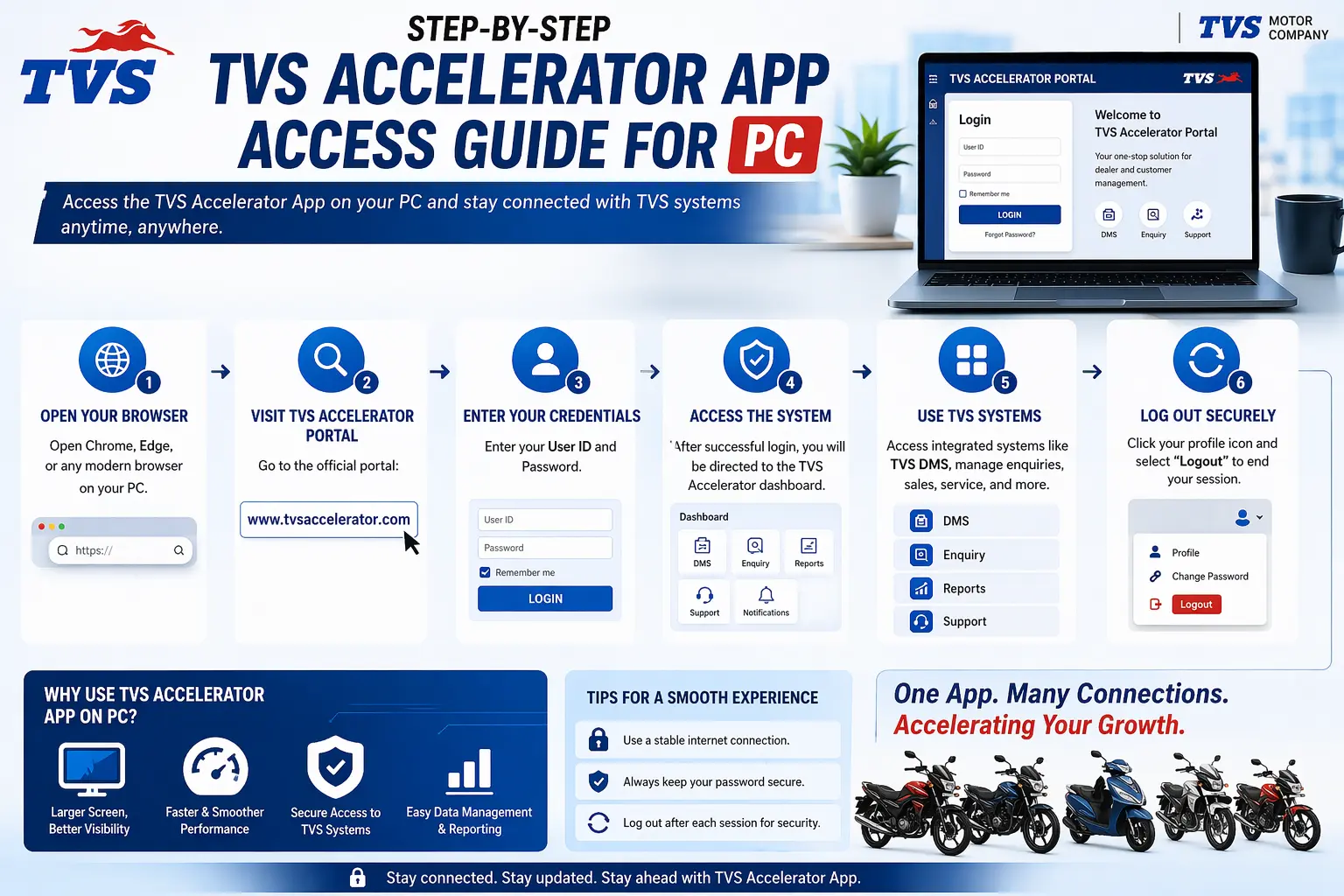
Option 1: the web portal (recommended)
For nearly everyone on a computer, this is the right answer. Desktops and laptops have big screens and full keyboards, which is exactly what the web portal is built for. There is nothing to install and nothing to keep updated.
- Open a modern browser such as Chrome, Edge or Firefox on Windows 11, 10 or 7.
- Go to the official portal address your dealership or TVS provides.
- Sign in with your dealer-issued user ID and password.
- Bookmark the portal so you can reach it in one click next time.
No installer to break
Because the portal runs in your browser, there is no desktop app to fall out of date, no emulator to configure, and nothing extra to secure. For day-to-day work on a PC, it is the cleanest option.
Option 2: an Android emulator (advanced)
If you specifically need the mobile app on a PC, for example to use a feature that only the app has, you can run it inside a reputable Android emulator. Be honest with yourself about whether you need this, because it adds complexity and its own security considerations.
- Install a well-known, reputable Android emulator on your PC.
- Inside the emulator, get the app from the direct APK link exactly as you would on a phone.
- Sign in with your dealer credentials.
- Keep both the emulator and the app updated, and only install the app from the trusted source.
Emulators are not a shortcut around safety
Running the app in an emulator does not make an unofficial APK safe. Whether on a phone or an emulator, only install the app from the trusted source, and never enter credentials into a build you do not trust.
Windows 11, 10 and 7
The good news is that the web-portal route does not really care which Windows version you run. Windows 11, Windows 10 and even Windows 7 can all open a modern browser and reach the portal. Older systems like Windows 7 no longer receive security updates from Microsoft, so if you are on one, be extra careful about what else you install, and prefer the browser route over an emulator.
PC troubleshooting
| Issue | What to do |
|---|---|
| Can't find a desktop app | There usually isn't one; use the web portal in your browser instead. |
| Portal won't load | Try a different modern browser, check your connection, and confirm the official address. |
| Emulator runs slowly | Allocate more resources to it, or switch to the lighter web-portal route. |
| Login fails on PC | Same as any device: confirm credentials and account status with your admin. |
Pin the portal as a desktop app
If you like having a dedicated icon rather than hunting for a browser tab, modern browsers let you install the portal as a desktop app. In Chrome or Edge, look for an install icon in the address bar, or open the browser menu and choose the option to install the site or create a shortcut. This gives you a standalone window with its own taskbar icon that opens straight to the portal, with no address bar and no clutter.
- Open the official portal in Chrome or Edge and sign in once.
- Click the install icon in the address bar, or open the menu and find Install or Create shortcut.
- Confirm, and let the browser place an icon on your desktop or taskbar.
- Launch it from that icon in future for a clean, app-like window.
This is purely a convenience layer over the same web portal, so it carries none of the risk of installing an unknown program. You are still using the trusted site; it just looks and opens like an app.
Web portal versus emulator, side by side
To make the choice clear, here is how the two PC routes compare on the things that actually matter day to day. For almost everyone, the comparison points firmly at the portal.
| Factor | Portal vs emulator |
|---|---|
| Setup effort | Portal: none. Emulator: install and configure a whole Android environment. |
| Security surface | Portal: minimal. Emulator: another large program to keep updated and trust. |
| Speed | Portal: instant in a browser. Emulator: heavier, and can run slowly on modest PCs. |
| Keeping current | Portal: nothing to update. Emulator: update both the emulator and the app. |
| Best for | Portal: virtually everyone. Emulator: rare app-only features. |
Using it on a shared office PC
Dealership computers are often shared between staff across shifts, which adds a few sensible precautions. The goal is simple: make sure your access does not stay behind for the next person at the keyboard.
- Do not let the browser save your password on a shared machine.
- Sign out of the portal when you step away or finish your shift.
- Consider a private or guest browser window so nothing is remembered after you close it.
- Lock the computer if you leave it briefly with your session open.
- If the PC is truly public, treat every login as one-time and clear it when done.
Why there's no traditional installer to download
It can feel odd that a tool this important does not come as a downloadable program for Windows. The reason is actually reassuring. Building the workflow into a web portal means TVS and dealerships can update it centrally, on the server, without every staff member having to download and install patches. It also means there is no installer file floating around the internet for fake sites to imitate. In other words, the absence of a desktop installer is not a gap; it is a deliberate, safer design choice. If you ever find a site offering a TVS Accelerator desktop installer to download, treat that as a reason for suspicion, not relief.
Getting the most from a big screen
One genuine advantage of using a PC is the screen. Enquiry lists, customer details and any reporting-style views are simply easier to read and work with on a large monitor than on a phone. If your role involves reviewing more than capturing, the desktop portal can be the more comfortable home for that work. Use browser tabs to keep the portal open alongside other tools you use, and a full keyboard makes entering longer notes far quicker than thumb-typing on a phone.
Choosing the right browser
On Windows you have a choice of browsers, and for the portal any modern one works well. It is still worth a quick word on the options so you can pick confidently.
| Browser | Notes |
|---|---|
| Chrome | Widely used and well supported; the install-as-app option is convenient. |
| Edge | Built into Windows, fast, and also supports installing the portal as an app. |
| Firefox | A solid, privacy-minded choice that handles the portal fine. |
Whichever you choose, keep it updated. A very old browser is the most common reason a modern portal looks broken on a PC, and updating it is usually the quickest fix.
Working faster on a desktop
A computer's real advantage for this kind of work is speed of input and the size of the screen. A full keyboard makes entering notes and customer details far quicker than a phone. Browser tabs let you keep the portal open beside other tools you use during the day. And if your work involves reviewing lists or longer records, a large monitor turns a cramped phone task into a comfortable one. If you split your time between the showroom floor and a desk, it is perfectly normal to use the app on your phone for capture and the desktop portal for the heavier review work.
Saving or printing a record
Because the portal runs in a browser, the ordinary browser tools are available to you. If you need a paper copy or a saved file of something on screen, your browser's print function can usually print it or save it as a PDF. Treat anything you export this way as business information: store it sensibly and do not leave printouts of customer data lying around. The convenience of the desktop comes with the same duty of care that applies to the data inside the system itself.
Next steps
For most PC users the web portal is all you need; the dedicated web access guide goes deeper on browser setup. If you hit a sign-in wall, the login guide lists the fixes, and the Android guide covers the phone side if you use both.