Android is the main platform for the TVS Accelerator app, so this is where setup is most straightforward. This guide covers compatibility, a safe install from the trusted source, first sign-in, and fixes for the issues Android users run into.
Download the APK, then use your dealer login
Install the Android app only from the direct APK link or your dealership admin, reached via tvsmotor.com or your authorised TVS dealership.
Installing on Android, in short
Will it run on your phone
The app targets ordinary, reasonably current Android phones. You do not need a high-end device, but a very old version of Android or an extremely low-storage phone can cause trouble. Before installing, it is worth a quick check.
| Requirement | Notes |
|---|---|
| Android version | A current, supported Android version. Very old releases may not be compatible. |
| Storage | Enough free space for the app plus its working data; clear room if you are nearly full. |
| Connection | A stable mobile or Wi-Fi connection, since the app syncs with dealer systems live. |
| Account | Login credentials issued by your dealership; the app is not usable without them. |
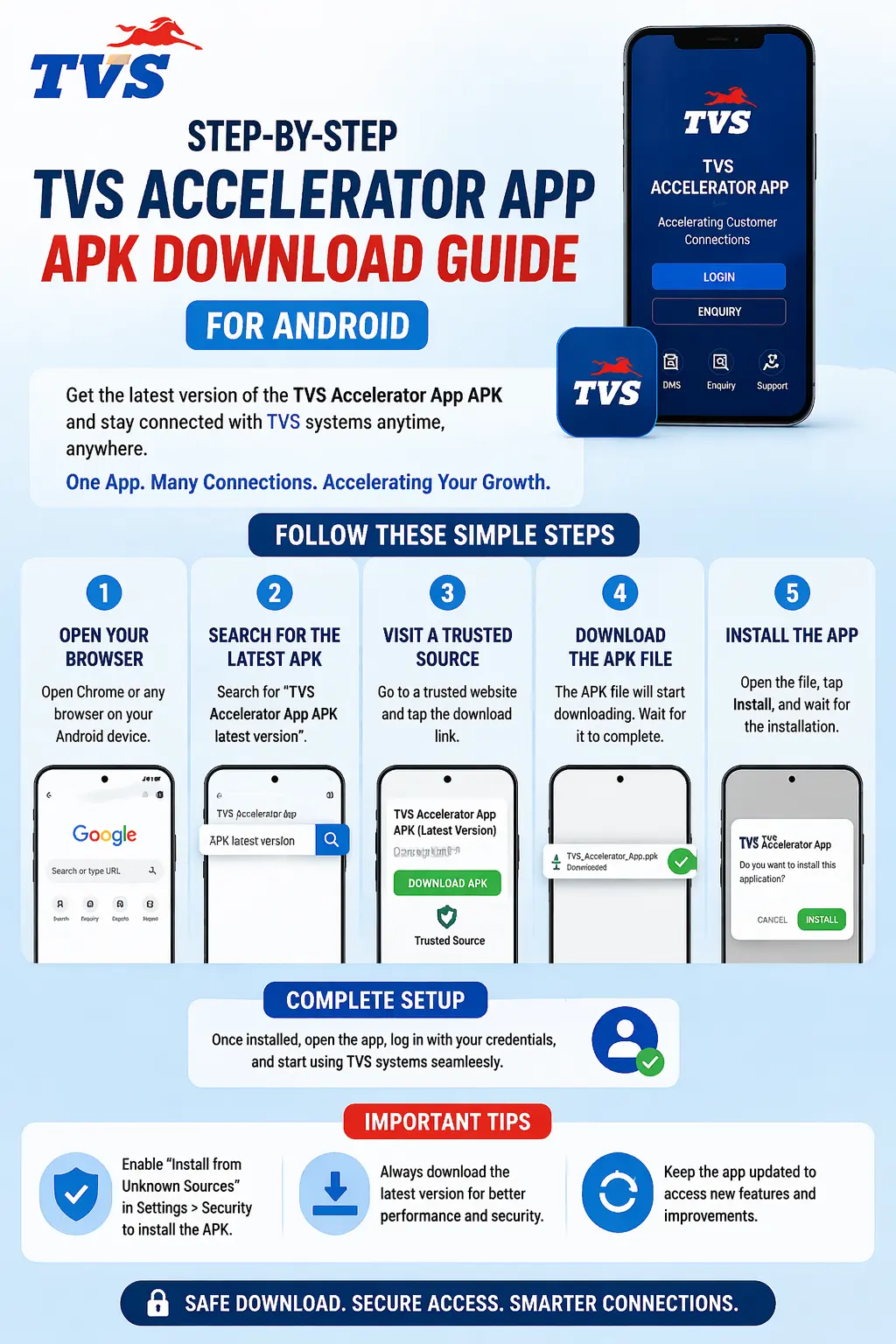
Step-by-step install
- Confirm your dealership has created your account; without it the app cannot sign you in.
- Open the direct APK link from TVS or your dealership rather than searching for a download.
- Verify the publisher and the latest update date on the listing.
- Install the app and let it finish. Do not lower your phone's security settings for a file from an unknown source.
- Open the app, accept any standard permissions it genuinely needs, and proceed to login.
- Sign in with your user ID and password to reach the main screen.
About “unknown sources”
Android warns you before installing apps from outside trusted app sources for good reason. If a download page tells you to switch off that protection for its file, treat that as a red flag and stop.
First-time sign-in tips
The first login is where small mistakes show up. Enter the user ID exactly as provided, watch for capital letters in the password, and make sure you are online. If the app says your account was not found, that is an account-setup issue for your admin, not something a reinstall will fix.
Android troubleshooting
| Symptom | Fix |
|---|---|
| App won't install | Free up storage and confirm your Android version is supported, then retry from the trusted source. |
| Crashes on open | Often a tampered file from an untrusted source; uninstall and reinstall the trusted build. |
| Can't log in | Check credentials and connection, and confirm your account exists with the admin. |
| Very slow or stuck | Update to the latest version and restart the phone; a current build resolves most sync issues. |
Keeping it current
Let the app update from the direct APK link whenever a new version appears. Updates carry security and compatibility fixes, and a stale build is the most common cause of sudden login or sync problems. Never roll back using an unofficial APK to “fix” an update.
Permissions: what the app may ask for, and why
When you first open the app, Android may prompt you to allow certain permissions. It is worth understanding these rather than tapping through blindly, because permissions are where a tampered app would overreach. A genuine dealer enquiry tool only needs permissions that match its job.
| Permission | Why a genuine app might need it |
|---|---|
| Network | Essential. The app talks to dealer systems live, so it needs internet access to do anything. |
| Notifications | Reasonable. Used for reminders and follow-up alerts relevant to your work. |
| Storage | Sometimes needed to cache data or attach files; grant it only if a feature you use requires it. |
| Camera | Only if a feature genuinely captures images, for example a document. Question it otherwise. |
The rule of thumb is simple: a permission should make sense for something the app actually does. A basic enquiry app asking for your contacts, call logs or location with no obvious reason is a warning sign, and one more argument for only ever installing the trusted build. If you are unsure whether a permission is normal, ask your dealership admin, who has seen the genuine app's setup.
Data, storage and background behaviour
Because the app syncs with dealer systems, most of your real data lives on those systems rather than only on your phone. That is good news if you change devices: your records are not trapped on one handset. Locally, the app keeps a modest amount of working data so it can open quickly and behave smoothly. If your phone is short on space, clearing other apps' caches or unused files gives it the room it needs.
Battery and background behaviour are common worries. A well-behaved enquiry app should not drain your battery when you are not using it. If you ever notice unusual battery use, check that you are on the current version, since older builds occasionally misbehave, and restart the phone. Persistent oddities are worth raising with your admin, especially if other staff see them too, because that points to an app-wide issue rather than something on your device.
Restarting solves more than you'd think
A surprising share of “the app is acting weird” problems clear up after a simple phone restart followed by opening the current version. Try that before anything more drastic.
Switching to a new Android phone
Getting a new phone does not have to be stressful. Because the app is account-based and your records live on the dealer systems, moving over is mostly about installing the app again and signing in. There is no need to migrate files manually or worry about losing your data with the move.
- On the new phone, install the app from the direct APK link, exactly as you did the first time.
- Sign in with the same dealer-issued credentials.
- Confirm your data appears as expected once it syncs.
- On the old phone, sign out and remove the app so your account is not left active on a device you no longer use.
That final step matters for security. An old phone sitting in a drawer with an active work login is a small risk you can remove in seconds. Make signing out part of your upgrade routine.
App or web portal on Android?
Android is the one platform where you have a real choice between the native app and the web portal, so it is worth knowing when each shines. The app is the smoother day-to-day experience on a phone: faster to open, better suited to quick one-handed enquiry capture, and able to send you notifications. The web portal, opened in Chrome, is handy as a backup, for example if you are briefly on a device where you cannot install the app, or if an app issue is blocking you and you need access right now.
| Situation | Better choice |
|---|---|
| Everyday phone use | The app — faster and built for the task. |
| Quick access on a borrowed device | The web portal — nothing to install. |
| App is broken or updating | The web portal — a reliable fallback. |
| Notifications and reminders | The app — the portal can't push these the same way. |
Staying safe on Android
A few Android-specific habits keep your account and phone safe. None of them are difficult, and together they close the gaps that cause most trouble.
- Keep Android's built-in protections on; do not disable them to install something from a stranger.
- Install the app only from the direct APK link or your dealership admin.
- Lock your phone with a PIN, pattern or biometric, so a lost handset does not hand over your work login.
- Sign out of the app on any phone you stop using or pass on.
- Keep both Android and the app updated so security fixes actually reach you.
Setting up notifications properly
If the app offers notifications for reminders or follow-ups, it is worth setting them up deliberately rather than dismissing the first prompt and forgetting about it. In Android settings you can control whether the app may send notifications and how prominently they appear. For a tool whose whole job includes timely follow-ups, allowing sensible notifications can be the difference between catching a task and missing it. If notifications stop arriving, check both the in-app setting and Android's per-app notification permission, since either can quietly switch them off.
Battery and background behaviour settings
Android is aggressive about saving battery, which is usually good but can occasionally interfere with an app that needs to sync. If you notice the app is slow to update in the background or misses notifications, check whether Android's battery optimisation is restricting it. Allowing the app to run normally in the background, rather than being heavily restricted, helps it stay in sync. Balance this sensibly: you want reliable syncing without an app that drains your battery, and the current version of a well-behaved app should manage both.
Clearing cache versus clearing data
When troubleshooting, you will see two different options in Android's app settings, and they are not the same. Knowing the difference saves you from accidentally wiping more than you meant to.
| Option | What it does |
|---|---|
| Clear cache | Removes temporary files only. Safe to try first; it can fix odd glitches without affecting your login. |
| Clear data | Resets the app to a fresh state, usually signing you out. Use only if clearing cache did not help. |
The sensible order is to clear the cache first and see if the problem resolves. Only move on to clearing data if needed, and be ready to sign in again afterwards. Neither option touches your records, since those live on the dealer systems, not on your phone.
Next steps
Once installed and signed in, you are set on Android. If you also need access on a computer, see the Windows PC guide or simply use the web portal. For sign-in problems, the login guide has the full list of fixes.