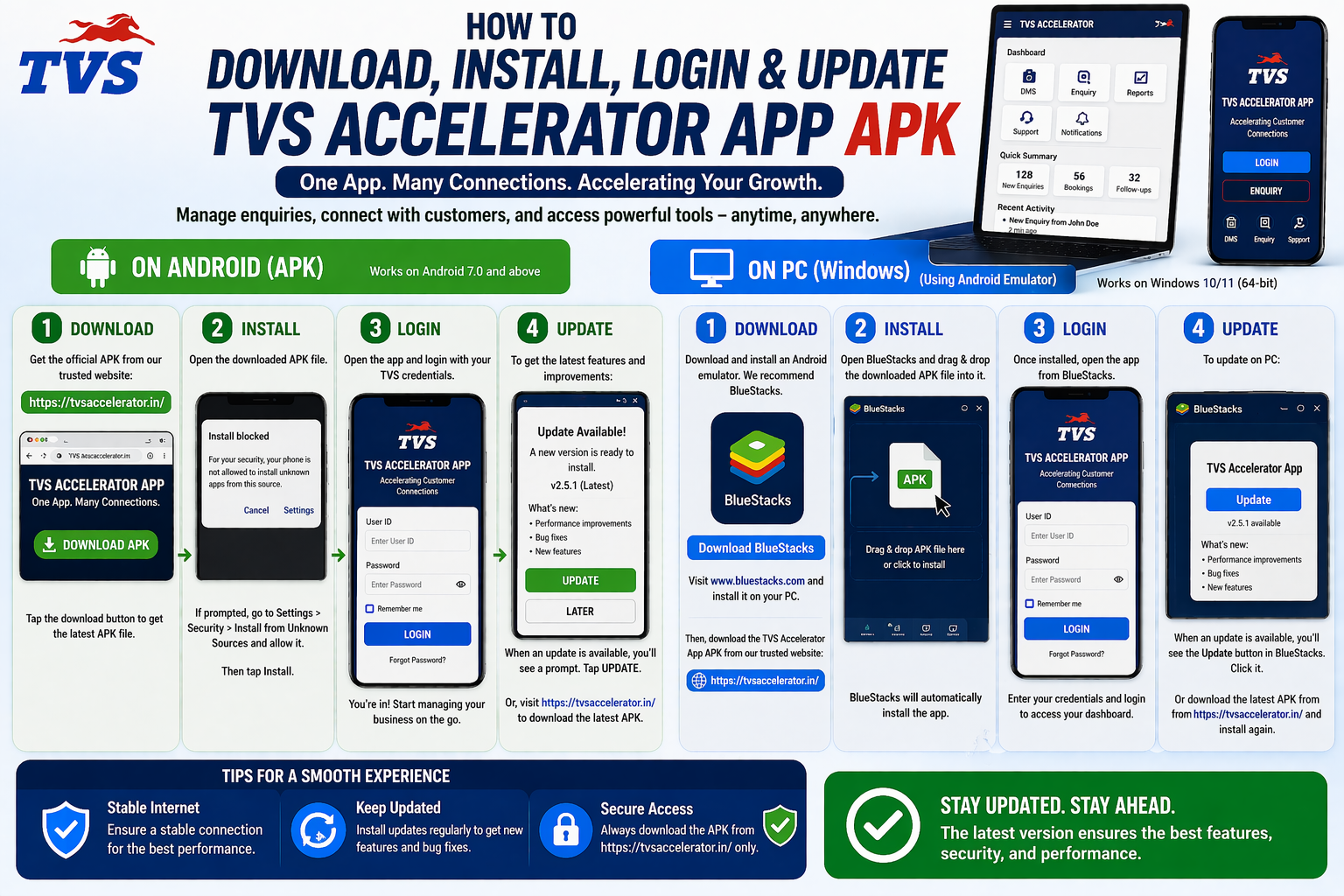
Almost every question about the TVS Accelerator app ends at the login screen, because the app is a controlled door into dealer systems. This guide explains how sign-in works, how to recover access, and how to fix the errors people hit most, without ever putting your password somewhere unsafe.
Download the APK, then use your dealer login
Only enter your TVS Accelerator credentials in the official app or official portal reached through tvsmotor.com or your authorised TVS dealership.
How to log in to the TVS Accelerator app
The reason login feels stricter than a normal app is simple: behind it sits real dealership data connected to the TVS DMS. Access is tied to your role, so the system genuinely needs to know who you are. Once you understand that the password is the whole point, the troubleshooting below makes a lot more sense.
Before you try to log in
Three things need to be true before a login can succeed. Checking them first saves you from chasing problems that were never really login bugs.
| Requirement | Why it matters |
|---|---|
| You have an account | A dealership admin or TVS must have created your user before you can sign in. New staff often miss this step. |
| You have the current app | An outdated build can fail to authenticate. Make sure you are on the latest official version. |
| You have a connection | The app talks to dealer systems in real time, so a stable internet connection is required. |
Step-by-step sign-in
- Open the official TVS Accelerator app, or the official web portal if you are on a computer.
- On the login screen, enter the user ID exactly as your admin provided it.
- Enter your password, watching for capitalisation and stray spaces.
- Submit and wait a moment while the app verifies your account against the dealer system.
- On success you land in the app's main screen, where enquiry and customer features become available.
Never enter your password on an unofficial page
If a website or app you did not get from an trusted source asks for your TVS Accelerator login, close it. Real credentials belong only in the official app or portal. A fake login form exists to harvest exactly that.
Forgot your password
Because accounts are managed by the dealership, password recovery is not a self-service free-for-all. The reliable path is to go back to whoever issued your account.
- Use the in-app or portal “forgot password” option if one is shown, and follow the prompts.
- If that is unavailable or does not work, contact your dealership admin or reporting manager directly.
- Ask them to reset your password or confirm your user ID is active.
- Set a new password and sign in again, then update it anywhere you had it saved.
Common login errors and fixes
Most sign-in failures map to a handful of causes. Find your symptom below and try the matching fix before assuming the app is broken.
| What you see | What to do |
|---|---|
| “Invalid credentials” | Re-check the user ID and password for typos and capitalisation; if still failing, ask the admin to confirm or reset them. |
| “Account not found” | An account likely was not created for you yet; contact the dealership admin to set one up. |
| Login button does nothing | Usually a connection or outdated-app issue; check internet and update to the latest version. |
| Logged out repeatedly | Can follow an app update or a server-side change; reinstall the trusted build and sign in fresh. |
| Works on web, not app | Confirm the app is the current official version, then reinstall it from the trusted source. |
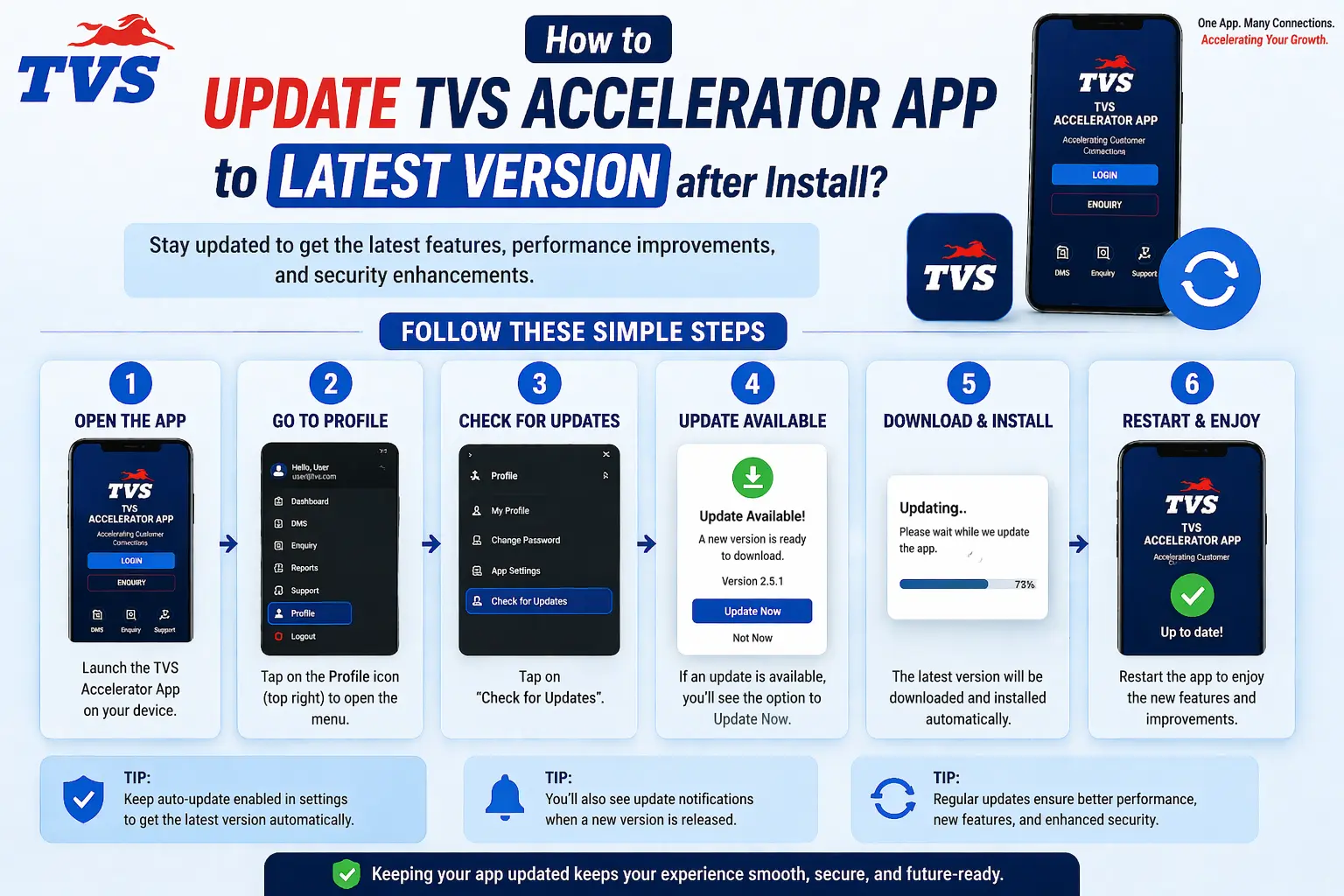
Protecting your account
A dealer login is worth protecting because it reaches business data. A few habits go a long way.
- Never share your user ID and password, even with a colleague who is in a hurry.
- Do not save the password in a browser on a shared or public computer.
- Sign out when you finish on a device that is not exclusively yours.
- If you suspect your credentials leaked, tell your dealership admin so they can reset them.
- Treat any unexpected request for your login as suspicious until you confirm it is official.
App login versus portal login
You may see references to signing in through the app, through the web portal, or through pages described with “com login” style names. These are different doors into the same building. The app is convenient on a phone; the web portal is convenient on a computer. What matters is not which door you use but that the door is official. If you reach a login screen from an untrusted site, the credentials you enter there are at risk no matter how legitimate the page looks.
User roles: what you can see and do
Not every staff member sees the same things in the app, and that is by design. Access is tied to your role, so a sales executive, a manager and an admin may each see a different slice of the system. If a colleague can view something you cannot, it is usually not a bug; it reflects the permissions attached to each role. Understanding this saves confusion: the app is not broken just because your view differs from someone else's.
If you genuinely need access to something your role does not currently allow, that is a conversation for your dealership admin, who manages roles and permissions. They can adjust what your account can reach, within whatever the dealership's policy allows. Reinstalling the app or trying a different download will never change your permissions, because those live on the system, not in the app on your phone.
Signing in on a new or shared device
Your account is not tied to a single device, so signing in somewhere new is straightforward, but a shared device deserves a little extra care.
- Install the official app or open the official portal on the new device.
- Sign in with your usual dealer-issued credentials.
- Confirm your data appears as expected once it syncs.
- On a shared device, avoid saving the password and sign out when you finish.
- On a device you are giving up, sign out and remove the app so your access does not linger.
Choosing and protecting a password
When you set or reset your password, a few simple choices make it much harder to compromise. Use something not obviously linked to you, avoid reusing a password you already use elsewhere, and do not write it on a note stuck to a shared computer. If your dealership allows you to change it, picking your own memorable but non-obvious password is better than keeping a default one. The goal is a password that you can remember but that someone glancing over your shoulder, or guessing from your name, could not.
Why you shouldn't share a login
It can be tempting, on a busy day, to let a colleague use your login or to borrow theirs. Resist it. Because access is tied to identity and role, a shared login muddies who did what and can expose data beyond what the other person should see. If a colleague needs access, the right answer is for the admin to set up or fix their own account, not to pass credentials around. A login is personal for the same reason a key to the safe is: it is about accountability as much as access.
What a healthy login routine looks like
Good login habits are mostly invisible once they become routine, and they prevent the majority of avoidable problems. Keep your credentials to yourself, never type them into anything you did not reach through an trusted source, sign out on devices that are not solely yours, and keep the app current so authentication does not fail on an old build. If you suspect your password has been seen by anyone, change it through your admin rather than hoping it is fine. None of this is burdensome; it is just the difference between an account that quietly works and one that becomes a problem.
Why the login is deliberately strict
If the sign-in process feels more controlled than a typical consumer app, that is intentional and worth understanding. The app reaches into real dealership and customer data through the TVS DMS, so the system has a genuine need to know exactly who is using it. There is no public sign-up because the public is not meant to be inside. Accounts are issued by an admin so that access maps to actual staff and roles. Far from being an inconvenience, that strictness is what keeps customer information and business data protected, and it is a sign you are dealing with a legitimate system rather than a free-for-all.
If your account gets locked
Some systems lock an account after several failed sign-in attempts, as a protection against guessing. If you find yourself suddenly unable to log in after a run of wrong tries, a lockout is a likely explanation, and crucially, it is not something you can clear by reinstalling. The fix is to wait if the system unlocks automatically after a time, or to contact your dealership admin to unlock or reset the account. Treat a lockout as a sign the security is working, not as a fault, and avoid hammering the login further, which can extend it.
If your dealership adds extra verification
Depending on how your dealership configures access, you may encounter an extra verification step beyond your password, such as a code or an approval. If so, follow it as part of normal sign-in; it is there to protect business data, not to obstruct you. The same safety rule still applies: only ever complete these steps inside the official app or portal. No legitimate verification will ever ask you to enter your details on an unfamiliar third-party page, so treat any such request as a warning rather than a step to comply with.
Signing out properly, and why it matters
Signing in gets all the attention, but signing out matters just as much on any device you do not fully control. Leaving an active session on a shared office PC, a borrowed phone, or a device you are passing on is a quiet risk: the next person could reach business data under your name. Make a clean sign-out part of your routine whenever you finish on a device that is not solely yours. It takes a moment and closes off one of the most common ways access leaks without anyone meaning for it to.
Still stuck
If you have a confirmed account, the current app, and a good connection but still cannot sign in, the issue is almost always on the account side rather than something you can fix by reinstalling repeatedly. Contact your dealership admin, who can see your account status directly. For setup on a specific device, the Android, iPhone and Windows PC guides walk through each platform.