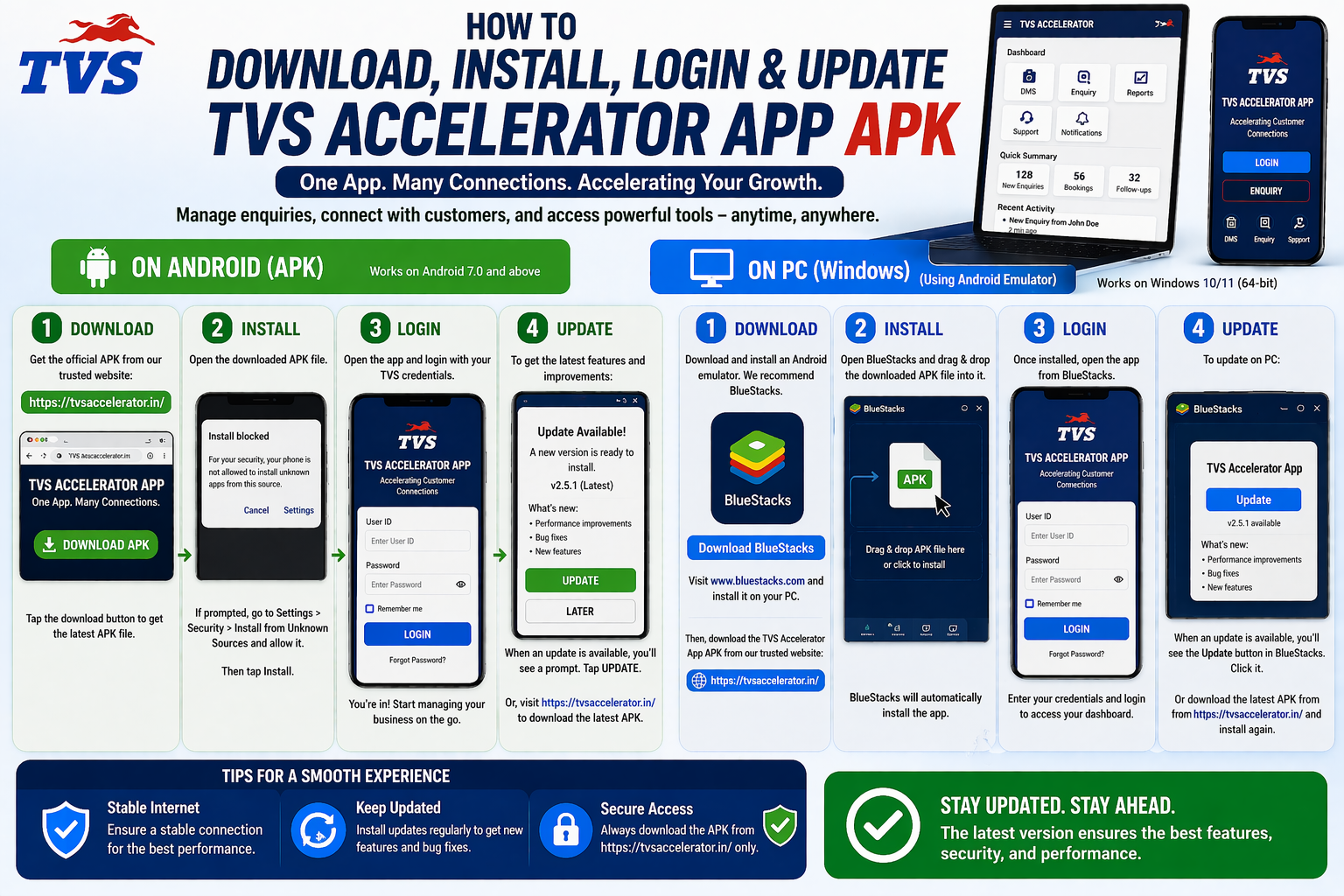
The official web portal is the most universal way to reach the TVS Accelerator workflow. It runs in any modern browser on any device, which makes it the natural choice on computers and a reliable fallback on phones. This guide covers how to access it and use it safely.
Download the APK, then use your dealer login
Reach the web portal only through the official address provided by TVS or your dealership, via tvsmotor.com or your authorised TVS dealership.
Accessing the web portal
Why the web portal is so useful
The portal solves several problems at once. On a PC there is often no desktop app, so the browser is the way in. On iPhone there may be no native app, so the browser fills the gap. And on any device, a browser version means nothing to install, nothing to update, and one less app holding your credentials. For a tool that staff reach from many devices, that flexibility is genuinely valuable.
What you need
| Requirement | Notes |
|---|---|
| A modern browser | Chrome, Edge, Firefox or Safari, kept reasonably up to date. |
| The official address | The portal URL from your dealership or TVS, not a link from an untrusted source. |
| Your credentials | The user ID and password issued for your role. |
| A connection | A stable connection, since the portal works with live dealer data. |
Signing in on the web
- Open your browser and navigate to the official portal address.
- Confirm the address is the official one before entering anything.
- Enter your user ID and password.
- Sign in and use the enquiry and customer features as you would in the app.
- Bookmark the portal, and sign out when you are on a shared computer.
The address is everything
A fake portal is just a login form that looks right and steals what you type. Always reach the portal through the official address you were given, never through a link in an unexpected message or an unfamiliar search result.
Make it feel like an app
If you like the convenience of an icon, most browsers let you save the portal to your home screen or desktop. On a phone, use the share menu and choose Add to Home Screen. On a desktop, create a bookmark or use your browser's install-as-app option if it offers one. Either way you get one-tap access without installing a separate program.
Web troubleshooting
| Issue | Fix |
|---|---|
| Page won't load | Check your connection, try another modern browser, and confirm the official address. |
| Login rejected | Verify your credentials and account status with your admin. |
| Looks broken | Update your browser; very old browsers can struggle with modern portals. |
| Logged out often | Normal on shared devices for security; sign back in when needed. |
How to recognise the official address
The single most important security habit for any web portal is knowing the address you are supposed to use. A fake portal is nothing more than a convincing copy of the login page that quietly records what you type. The defence is simple: get the official address from your dealership or TVS once, and only ever reach the portal through it.
- Save the official address the first time your dealership gives it to you.
- Check the address bar before typing your login, especially the domain.
- Be wary of links in unexpected messages or emails that lead to a login page.
- Treat search-result links to login pages with caution; prefer your own saved bookmark.
- If an address looks almost right but slightly off, stop and confirm with your admin.
Bookmark it once, reach it safely forever
Bookmarking the portal is not just convenient; it is a security measure. When you always open the portal from your own bookmark rather than by searching or following links, you remove the most common way people land on fake login pages. Set it once and build the habit of using it.
- Open the official portal and sign in to confirm it is the right address.
- Bookmark the page, or add it to your home screen on a phone.
- Give the bookmark a clear name you will recognise.
- From then on, always open the portal from that bookmark.
One account across all your devices
Because the portal is account-based, the same login works everywhere: your office PC, your phone, a tablet on the showroom floor. You are not setting up separate accounts per device; you are signing the same identity into the same system from wherever you happen to be. Your data lives on the dealer systems, so it looks the same on every device and stays in sync. This is part of why the web portal is so practical for staff who move between a desk and the floor during a shift.
When the portal beats the app
The native app is great on a phone, but there are real situations where the browser portal is the better tool, and it is worth knowing them.
| Situation | Why the portal wins |
|---|---|
| On a computer | The portal is the natural route; there is usually no desktop app. |
| On an iPhone with no app | The portal fills the gap completely. |
| On a borrowed device | Nothing to install; sign in, work, sign out. |
| When the app is updating or broken | The portal is a reliable fallback so you are never locked out. |
What happens without a connection
It is worth being clear that the portal needs a live connection, because it works with real dealer data in real time. If your connection drops, the portal cannot reach that data, just as the app cannot. This is not a fault; it is the nature of a tool that reflects live business information. The practical takeaway is to make sure you have a stable connection before you rely on it for something time-sensitive, and to treat any offline mode offered by an untrusted source as a red flag rather than a feature.
Everyday habits for safe portal use
Pulling it together, a handful of small habits make web access both smooth and safe. Use your own bookmark to reach the portal, check the address before logging in, sign out on shared computers, keep your browser updated, and never enter your credentials on a page you reached through an unexpected link. None of these slow you down once they become routine, and together they remove almost every realistic way a web login goes wrong.
Browser compatibility
The portal is built for modern browsers, and the practical rule is simply to keep yours reasonably current. The table below sets expectations for the common choices across devices.
| Browser | Status |
|---|---|
| Chrome / Edge | Fully supported on Windows, Mac and Android; a safe default. |
| Safari | The right choice on iPhone, iPad and Mac; keep iOS or macOS updated. |
| Firefox | Well supported across desktop and mobile. |
| Very old browsers | May display the portal incorrectly; update before assuming a fault. |
Cookies, sessions and why you get logged out
Web portals keep you signed in using a session, which relies on cookies in your browser. This explains a few behaviours that can otherwise seem random. If your browser is set to clear cookies aggressively, or you use a private window, you may be asked to log in more often, which is normal. Being logged out on a shared computer after a period is a security feature, not a bug. And if you can never stay logged in at all, overly strict cookie settings or a privacy extension blocking the site are the usual culprits, worth checking before assuming the portal is broken.
Clearing your browser cache to fix glitches
If the portal looks broken, shows an old version of a page, or behaves strangely, a stale browser cache is a common and easily fixed cause. Clearing the cache for the site, or doing a hard refresh of the page, forces the browser to fetch a fresh copy. It is a low-risk first step that resolves a surprising number of display problems. If a hard refresh and a cache clear do not help, only then is it worth looking further, such as trying another browser or checking your connection.
Using the portal safely on public Wi-Fi
Sometimes you need access while on a network you do not control, such as public Wi-Fi. The portal can work there, but a little caution is wise with any login over a shared network. Make sure you are reaching the portal through its proper address from your own bookmark, sign out when you finish, and avoid saving the password on a device or browser that is not yours. If your dealership provides guidance or a secure connection method for working away from the office, follow it. The goal is simple: get your work done without leaving your access exposed on a network full of strangers.
When to use the APK instead of the web portal
The web portal is the best choice on PC, iPhone, shared office computers and any device where installing an app is inconvenient. Use the direct APK only when you are setting up the Android app itself and your role genuinely needs mobile app access. Keeping that separation clear helps staff choose the right route quickly: APK for Android installation, portal for browser access, and dealership admin for account or password issues.
Next steps
The portal is the common thread across devices. For computer specifics see the Windows PC guide, for iPhone see the iOS guide, and for sign-in problems the login guide covers every common error.